Chapter 12 · Part 1
Convert E+11 to Number in Excel
When you open a CSV in Excel, long phone numbers can turn into something like 6.01234E+11. That’s only how Excel displays them — here’s how to switch the column back to plain numbers and save a clean CSV.
What’s going on
Excel shows very long numbers in scientific notation by default. The data isn’t lost — you just need to tell Excel to show the column as plain numbers.
What you’re fixing
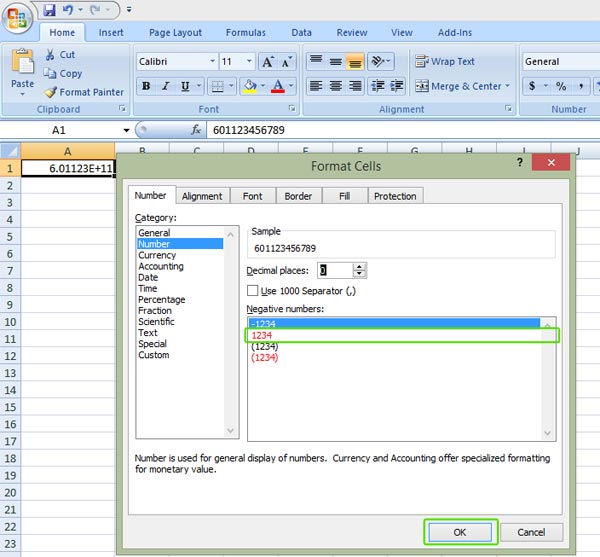
Formatting the cells as plain numbers (with no decimals) restores the full phone number.
How to fix it
- 1
Open the CSV in Excel
Open your
.csvin Microsoft Excel. If the Text Import Wizard appears, tick Comma as the delimiter and click Next / Finish.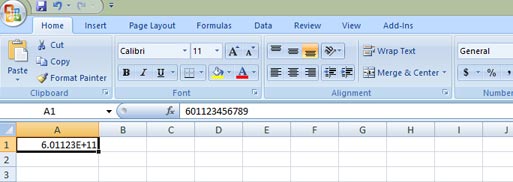
- 2
Open Format Cells
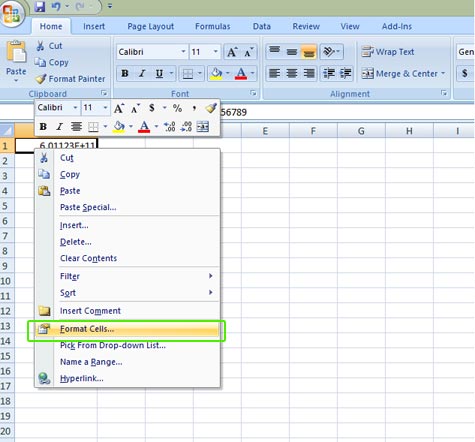
Select the column showing the E+11 numbers, right-click, and choose Format Cells.
- 3
Choose Number with 0 decimals
Pick the Number category, set 0 decimal places, and click OK. The phone numbers display in full.
- 4
Save as CSV again
Save the file as CSV once more before uploading to iSMS, so the corrected numbers are kept.
60########## custom format from Create CSV File in Excel.With the numbers fixed and saved, head to CSV Compose to upload and send.