Chapter 06 · Part 1
How to Compose a CSV File
Before you upload, your file needs the right column order and your message needs the right personalisation tokens. Start from the sample file, then write a message that fills in each recipient’s details automatically.
Formatting your CSV
This goes hand-in-hand with CSV Compose. Beginning from the sample file keeps your columns lined up with what iSMS expects.
The CSV journey
Prepare list
Excel, OpenOffice or Gmail
Format
Phone first, fix numbers
Save as CSV
Comma-delimited .csv
Upload
To CSV Compose
Send
Now or scheduled
- 1
Download the CSV sample
On the CSV Compose tab, click CSV Sample (Download CSV Sample) to get a correctly formatted template to start from.
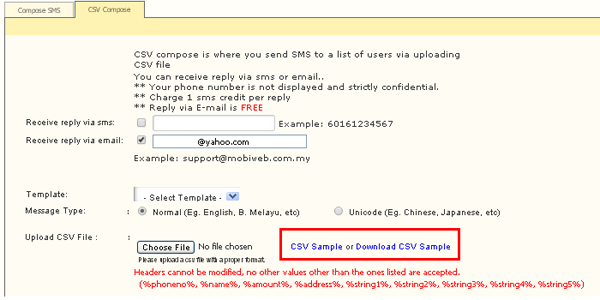
- 2
Follow the column & token format
Fill the sample with your data, then write your message using the matching tokens. iSMS swaps each token for that row’s value when it sends.

How personalisation works
Drop tokens into your message and each recipient gets their own version: