Chapter 14 · Part 2
Generate & View SMS Reports
iSMS gives you a few ways to review your sending: a monthly summary, a day-by-day summary, and a calendar view you can click into. Every view can be filtered by date and exported to Excel.
Three ways to view your activity
Open your reports from the SMS menu. Pick the view that suits what you need — a high-level monthly trend, daily detail, or a calendar at a glance.
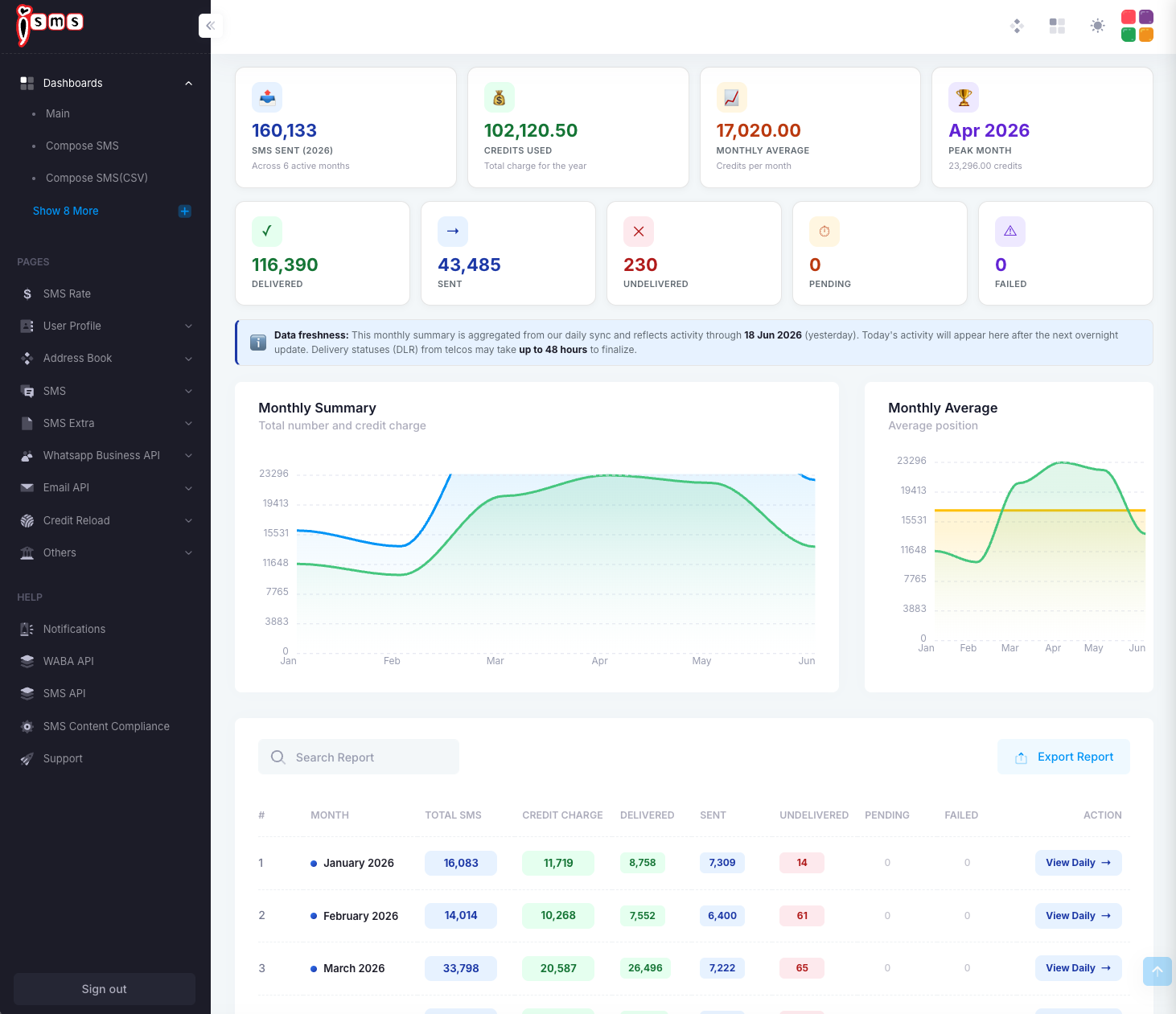
Monthly Summary
Totals and trends month by month, with credits used and a peak month.
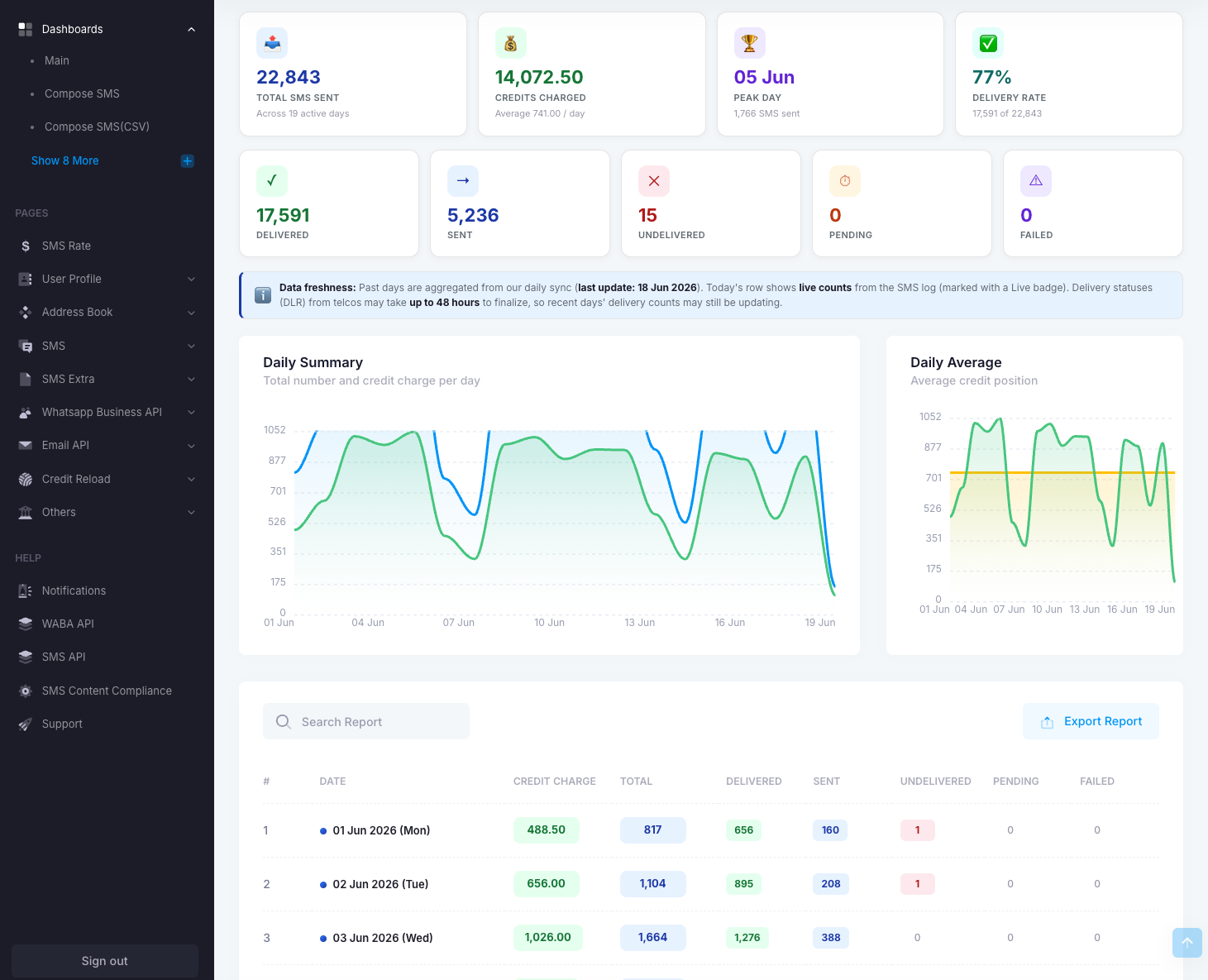
Daily Summary
Day-by-day counts and credit charge, with a peak day and delivery rate.
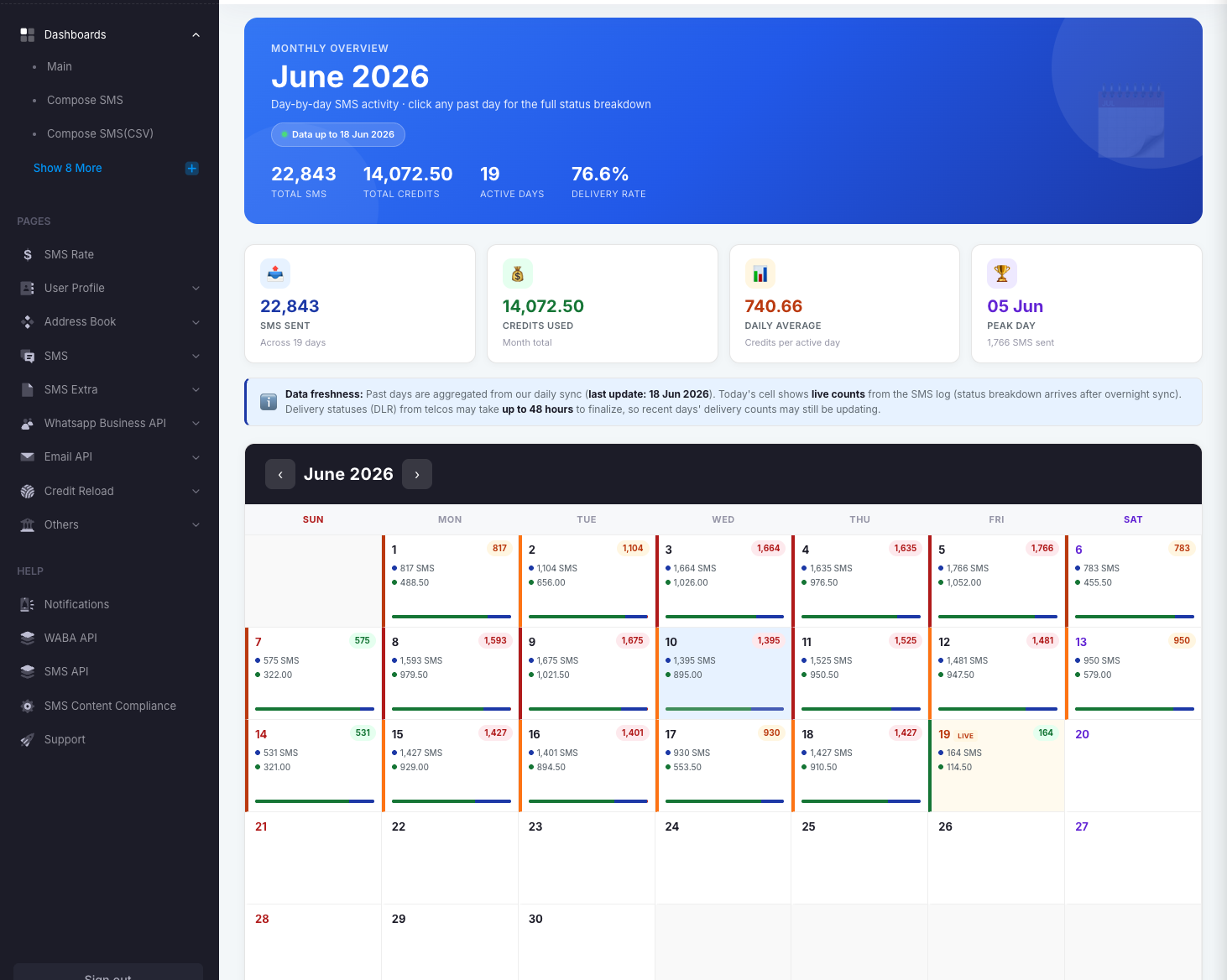
Daily Calendar
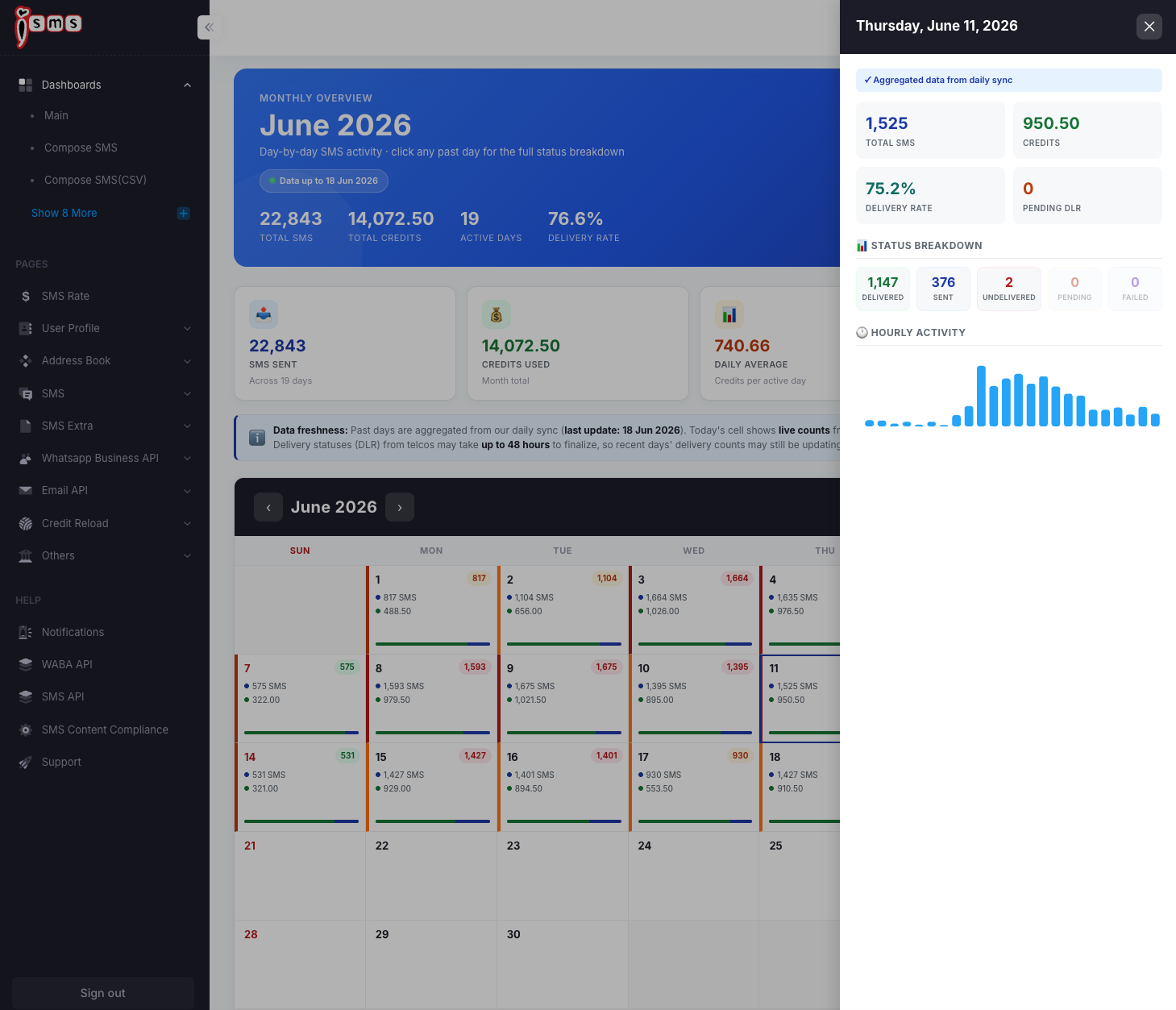
A month grid showing each day’s SMS — click any day for the full breakdown.
By account
Per-user and sub-account breakdowns — see the Summary Report.
Monthly Summary
Shows your year at a glance — total SMS sent, credits used, monthly average, and your peak month — with delivered / sent / undelivered counts, trend charts, and a month-by-month table. Use View Daily on any row to drill into that month.
Daily Summary
Breaks a month down by day, with credit charge, totals, and delivery status per day, plus daily trend charts and your busiest day.
Daily Calendar
Lays the month out as a calendar, with each day showing its SMS count and credit. Click any day to open a side panel with the full status breakdown and hourly activity.