Main
🏠 Home ℹ️ About Us
WhatsApp
💬 WhatsApp Business API (WABA) 🔐 OTP & TAC via WhatsApp 🤖 WhatsApp + AI Chatbot 🔵 Blue Tick Verification 🤖 AI Chatbot & Auto-Response 🎨 Automation Flow Builder 🔘 Interactive Messages 💡 Automation Use Cases 📱 Business App Coexistence
SMS
📱 One-Way Bulk SMS 🔒 Two-Factor Authentication (2FA) 🌏 Global SMS Coverage ⚡ SMS API
Email & API
✉️ Email Service Overview 🔌 Email SMTP API 🛠 REST API Reference
Queue System
🏢 Queue System Overview 💬 WhatsApp QMS ☁️ Cloud QMS ⚡ Cloud + WhatsApp QMS 📖 Cloud & WhatsApp QMS Guide 🎯 Request Free Demo
Pricing
💰 Full SGD Rate List 🛒 Buy SMS Credits
Support
📩 Contact Us ❓ FAQ 📖 End-User Guide ⚠️ Service Advisory
🔑 Login 📝 Register Free

Chapter 09 · Part 1

Export Excel to CSV (Mac OS)

On a Mac, turning an Excel sheet into a CSV is just a Save As with the right file format. Here are the three steps.

Saving your sheet as CSV on Mac

These steps use Microsoft Excel for Mac. The wording may differ slightly between versions, but the flow is the same.

  1. 1

    Open Save As

    Open or create your spreadsheet, then choose File → Save As… from the menu bar.
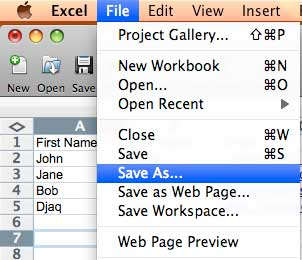
    File menu in Excel for Mac with Save As selected.
  2. 2

    Choose the CSV format

    From the File Format dropdown, pick a CSV option — choose Windows Comma Separated (.csv) if it’s offered, as it’s the most compatible with iSMS.
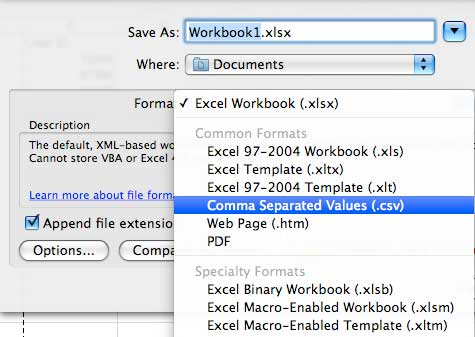
    File Format dropdown open in Excel for Mac. CSV format selected in the dropdown.
  3. 3

    Name and save

    Rename the file or pick a different location if you like, then click Save at the bottom right.
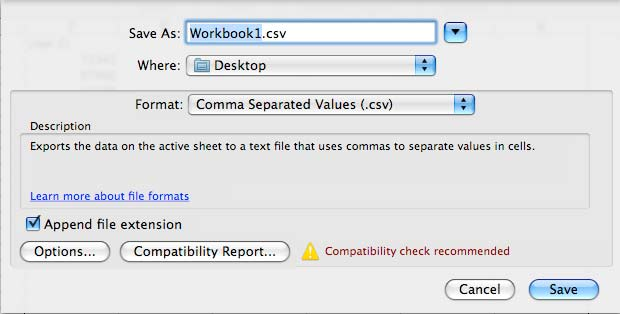
    Save dialog with the Save button highlighted.

Your CSV is ready — continue to CSV Compose to upload and send.

Need help?
Our team is happy to assist with anything in this guide. Contact us →
💬