Chapter 05 · Part 1
CSV Compose Bulk SMS
CSV Compose is the best way to send to large lists or to personalise each message — you upload a spreadsheet of recipients and iSMS merges each row’s details into the message. Use it for any send of 100 numbers or more.
Sending bulk SMS from a CSV
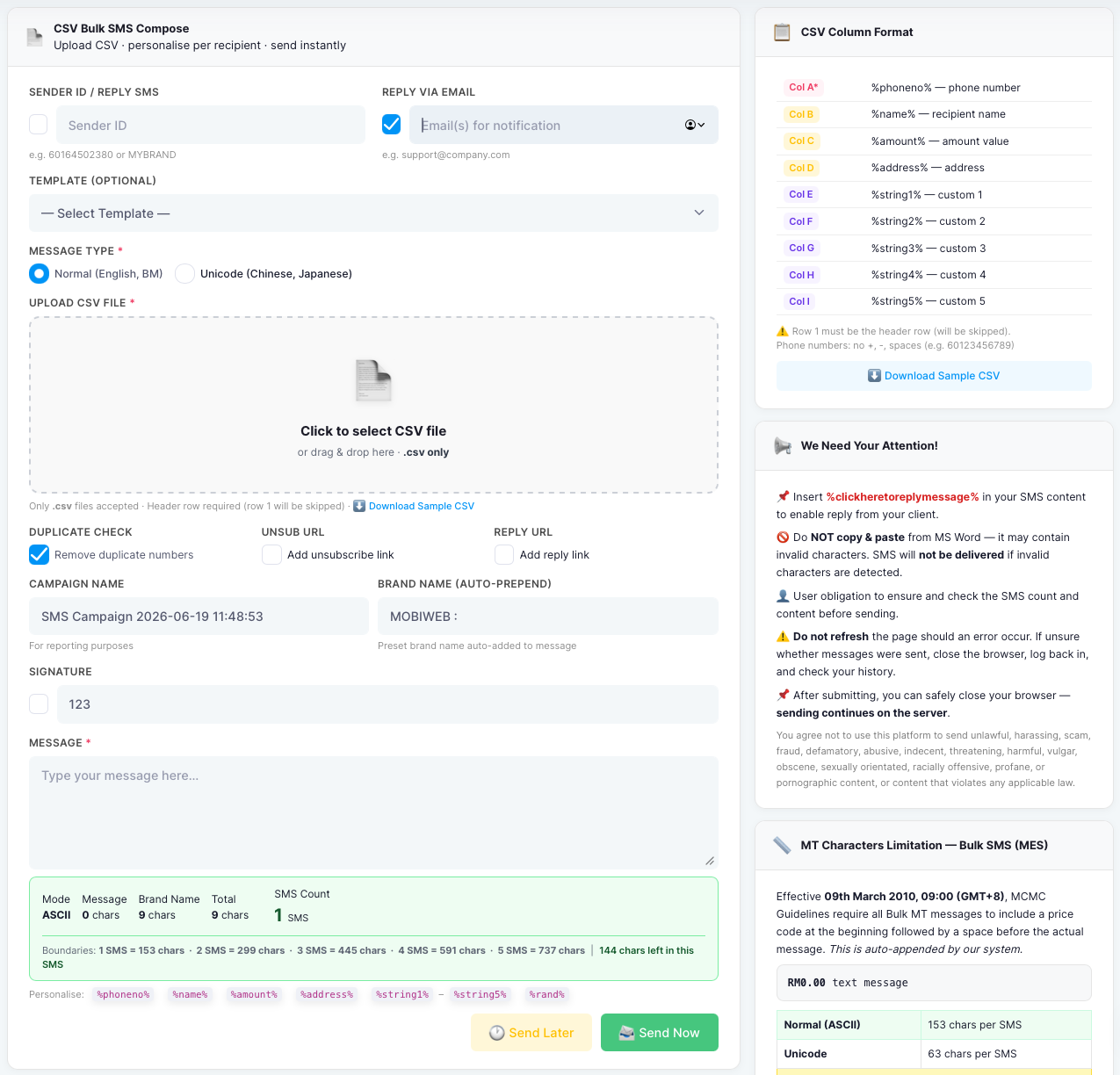
From the left menu, open SMS → Compose SMS (CSV). Most fields work just like Compose SMS — the difference is that your recipients (and their personalised details) come from an uploaded CSV file.
- 1
Set Sender ID & reply options
Enter your Sender ID, and tick Reply via Email to have replies forwarded to your inbox. Optionally choose a Template and the Message Type (Normal or Unicode).
- 2
Prepare your CSV file
Lay your file out in the exact column order shown below. Row 1 is the header row and is skipped on import, so your data starts on row 2. Phone numbers go in Column A with no
+, dashes, or spaces. - 3
Upload the CSV
Click the upload box (or drag your file onto it) to select your .csv file. Only
.csvfiles are accepted — you can grab a Sample CSV from the page to start from. - 4
Remove duplicates (optional)
Tick Remove duplicate numbers under Duplicate Check to automatically skip any repeated phone numbers in your file.
- 5
Add campaign details & write your message
Set a Campaign Name for reporting (a Brand Name is auto-added to the start). Type your message, using the column tokens below to personalise each recipient’s text.
- 6
Send now or later
Click Send Now to start, or Send Later to schedule. After submitting, you can safely close your browser — sending continues on the server.
CSV column format
Each column maps to a personalisation token you can drop into your message. Only Column A (the phone number) is required; the rest are optional.
| Col | Token | Inserts |
|---|---|---|
| A* | %phoneno% | Phone number (required) |
| B | %name% | Recipient name |
| C | %amount% | Amount value |
| D | %address% | Address |
| E | %string1% | Custom field 1 |
| F | %string2% | Custom field 2 |
| G | %string3% | Custom field 3 |
| H | %string4% | Custom field 4 |
| I | %string5% | Custom field 5 |
For example, a message of Hi %name%, your balance is %amount% becomes personalised for every row in your file. You can also use %rand% for a random value.