📋 Note: This guide covers Microsoft Excel 2008 and later on Mac OS. The steps are similar for newer versions of Excel for Mac.
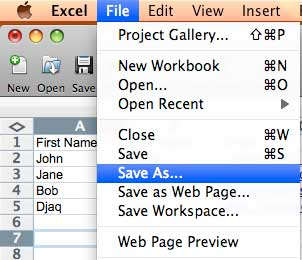
1 Open Your Excel File and Click File → Save As
Open or create your Excel spreadsheet. From the Menu Bar, select File → Save As...
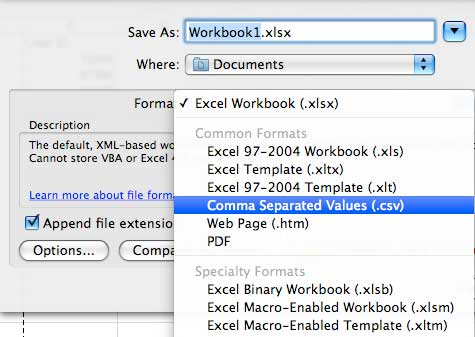
2 Select CSV Format from the Format Dropdown
A new Save As window will appear. Click the Format dropdown menu and select Comma Separated Values (.csv) from the list.

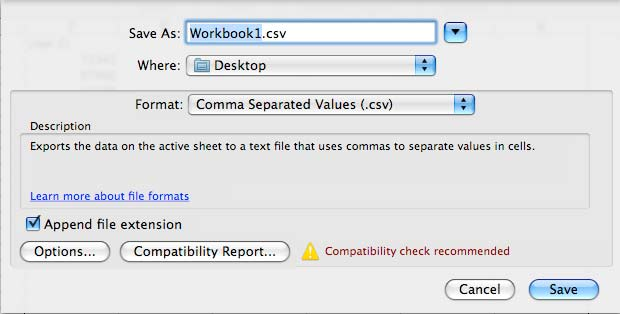
3 Choose File Name and Location, Then Click Save
You may rename the file or choose a different folder to save it. Once ready, click "Save" at the bottom right of the dialog. Your CSV file is now ready to upload to iSMS.
Need help? Contact iSMS Support
Email: sales@mobiweb.com.my (include your username)
Toll Free: 1800 87 7061 (Malaysia)
KL: +603 2780 3880 | Penang: +604 2024 033
Toll Free: 1800 87 7061 (Malaysia)
KL: +603 2780 3880 | Penang: +604 2024 033